
 |
|
 |
|
Your guide to using the secure and offline Semantic Assistant.
Get RAGU up and running in three simple steps:
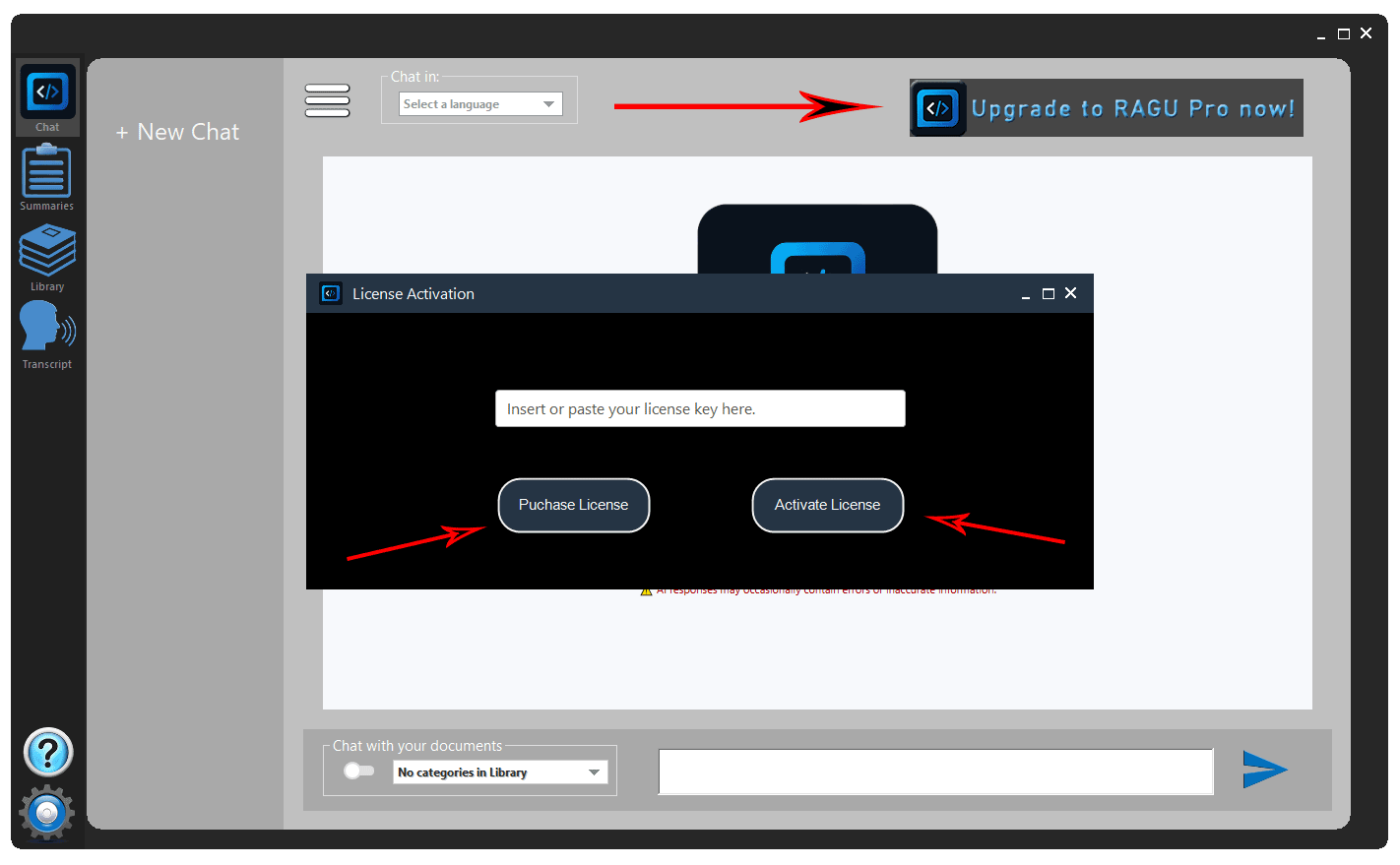
Detailed instructions on how to purchase and activate your license key. Remember, your key ensures exclusive and secure access to your data.
Access the website RAGU-PRO.COM and purchase your license. After payment confirmation, an email will be sent to you containing the key, which must be entered as shown in the image below.
| Core Features | RAGU (Free) | RAGU-PRO |
|---|---|---|
| 100% Offline & Private | ✔ | ✔ |
| CPU Only (No GPU) | ✔ | ✔ |
| Encrypted Chat Sessions | ✔ | ✔ |
| Chat and Sessions | Only 2 sessions, limited to (5 interactions per session) | Unlimited Sessions and Interactions |
| Chat with Files (RAG) | Only one Category, limited to (2 files at a time) | Unlimited Categories & Files & CRUD |
| Text Summarization | Copy and paste text only | Text, files, and Web |
| PT-BR/EN-US Translation to multiple languages | Only for Portuguese or English | No Limit |
| Dictation (Voice) | ✔ | ✔ |
| Ollama Model Selection | Only one installed model | Unlimited Library |
| Support | FAQ & Community | Priority Email Support |
The Library is where all your private files are managed. You can Create, Read, Update, and Delete (CRUD) documents. Organization is handled through user-defined Categories.
All files within a category must be in the same language.
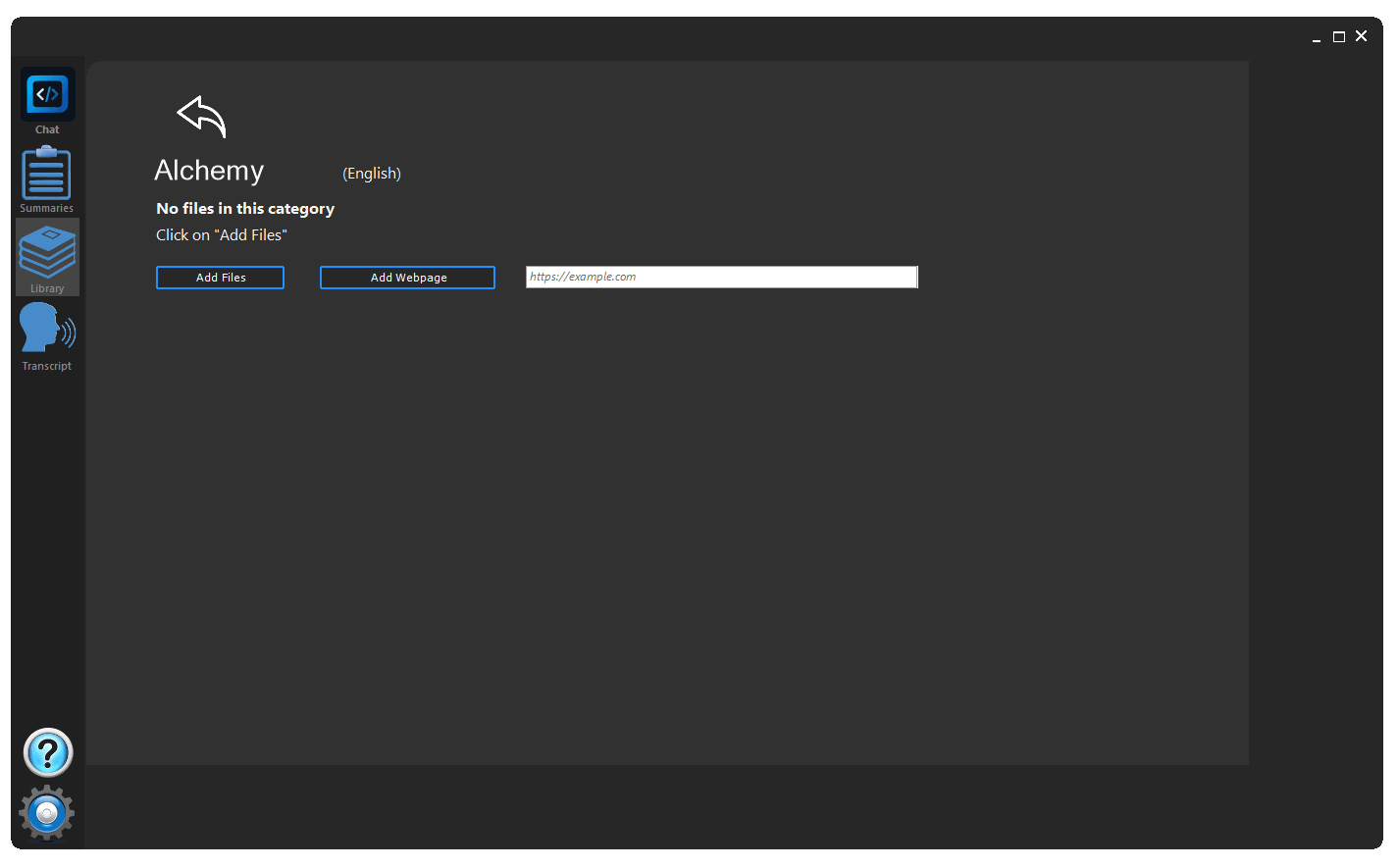
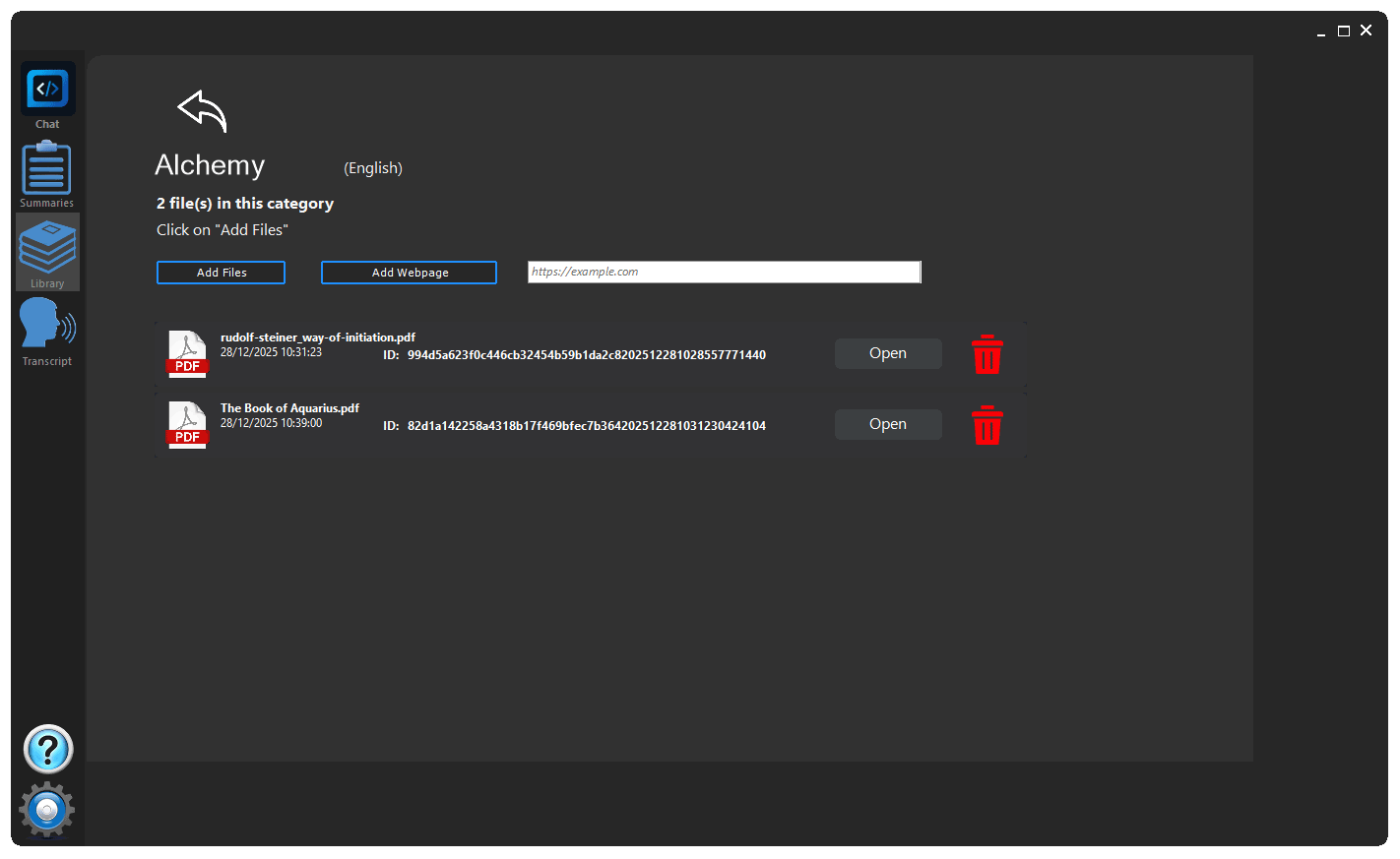
This is the core feature. Select a previously created category to start a private conversation session about the document.
Encryption: All chat sessions are encrypted and stored only locally on your machine.
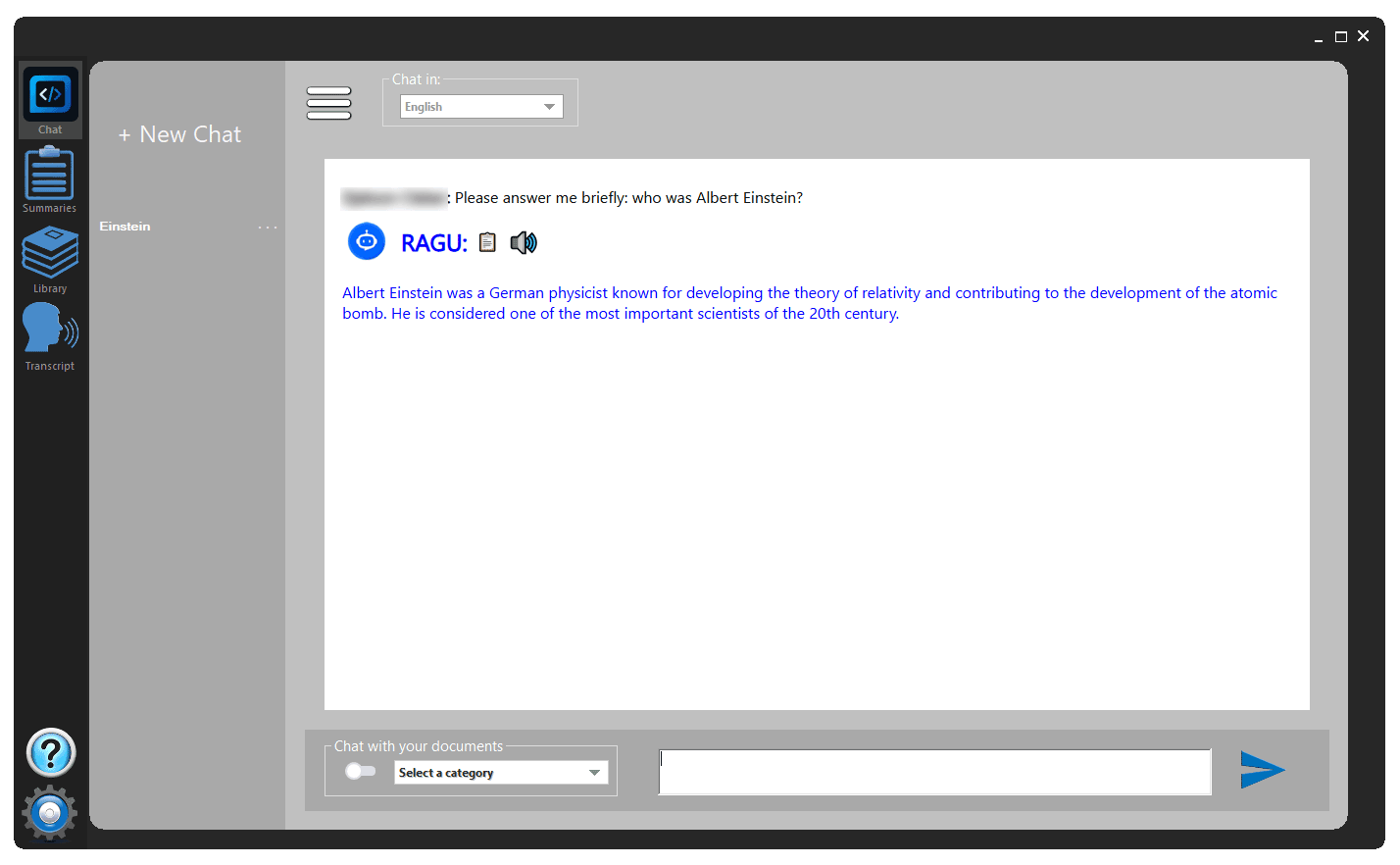
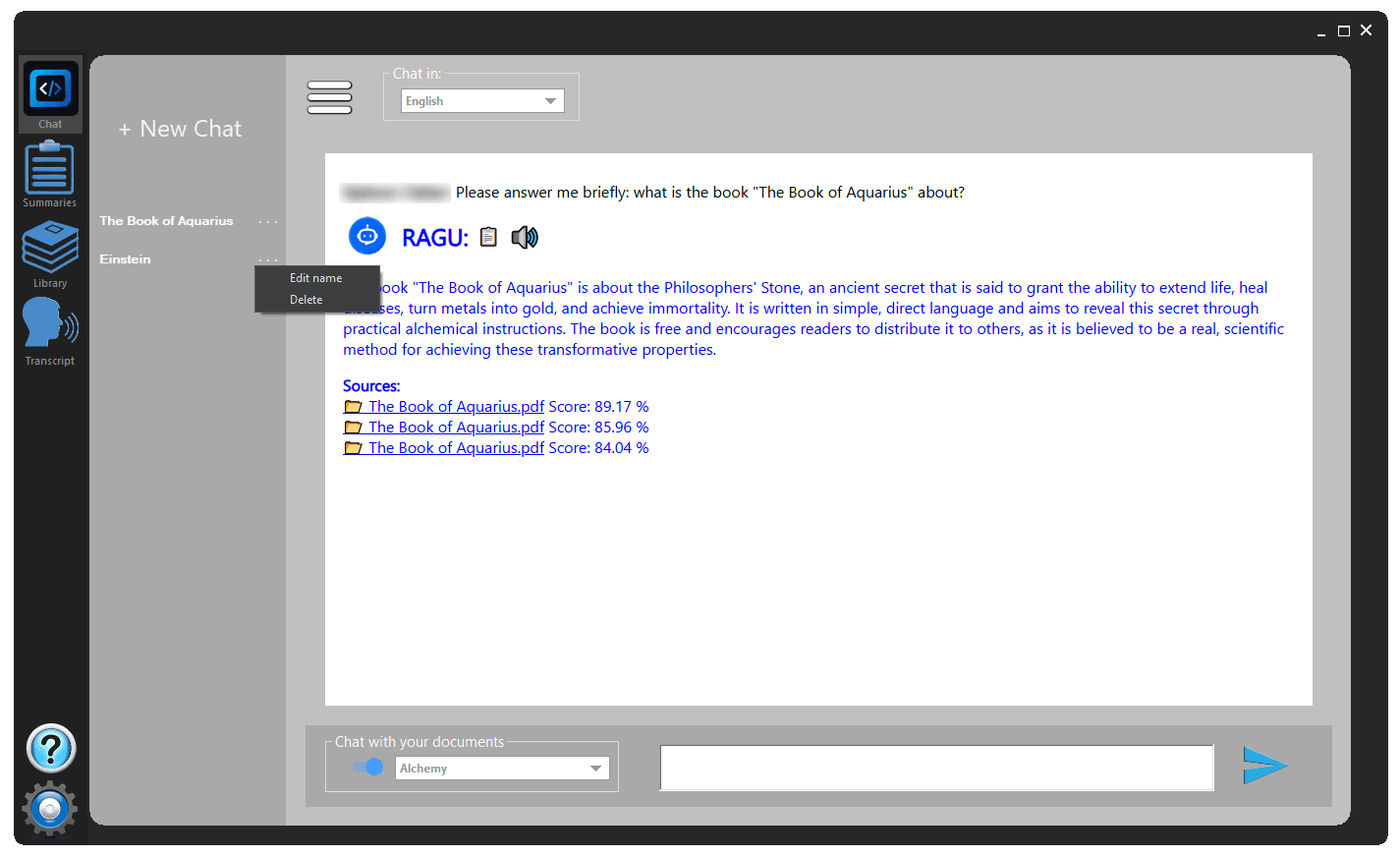
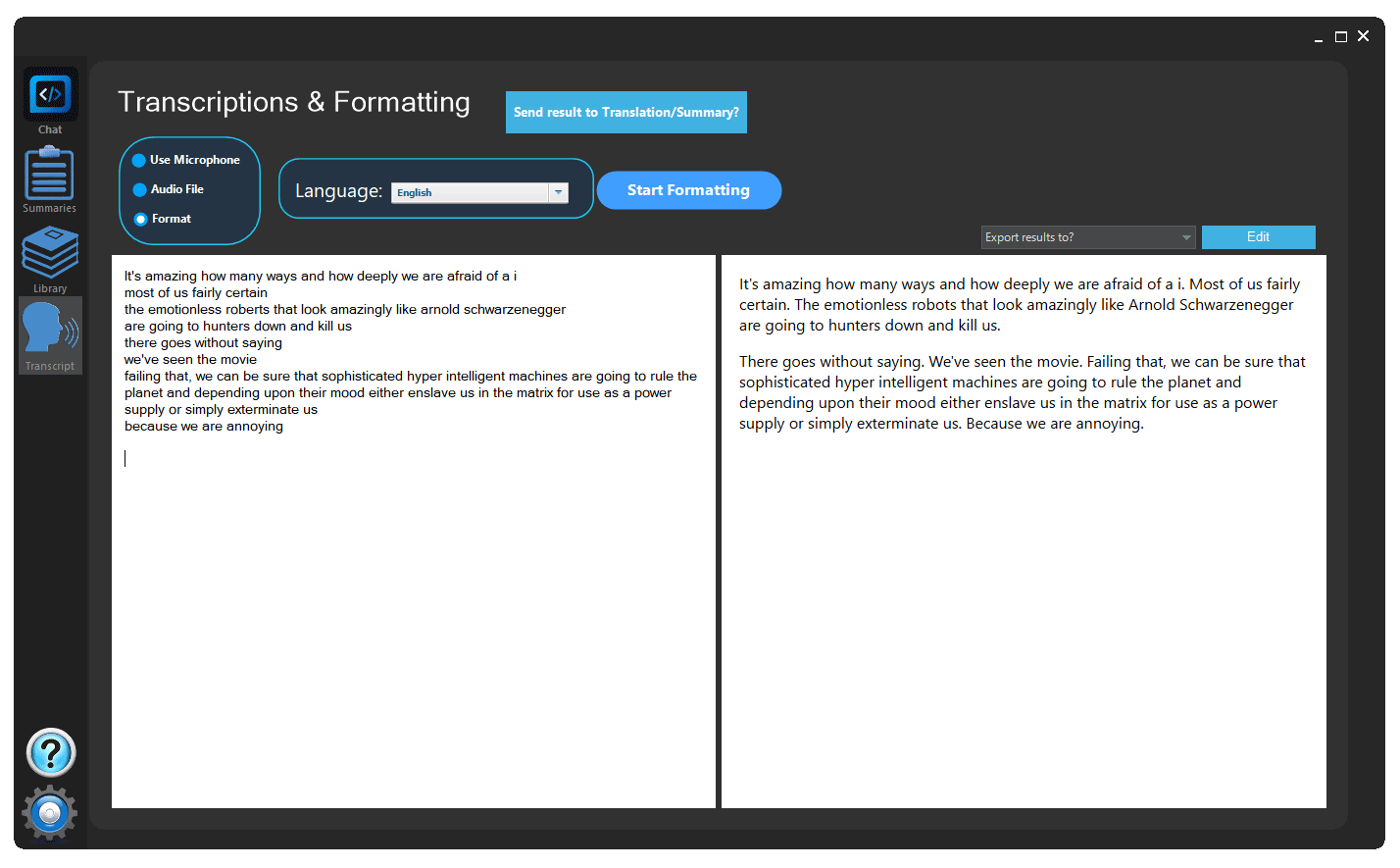
Use this tool for quick text operations:
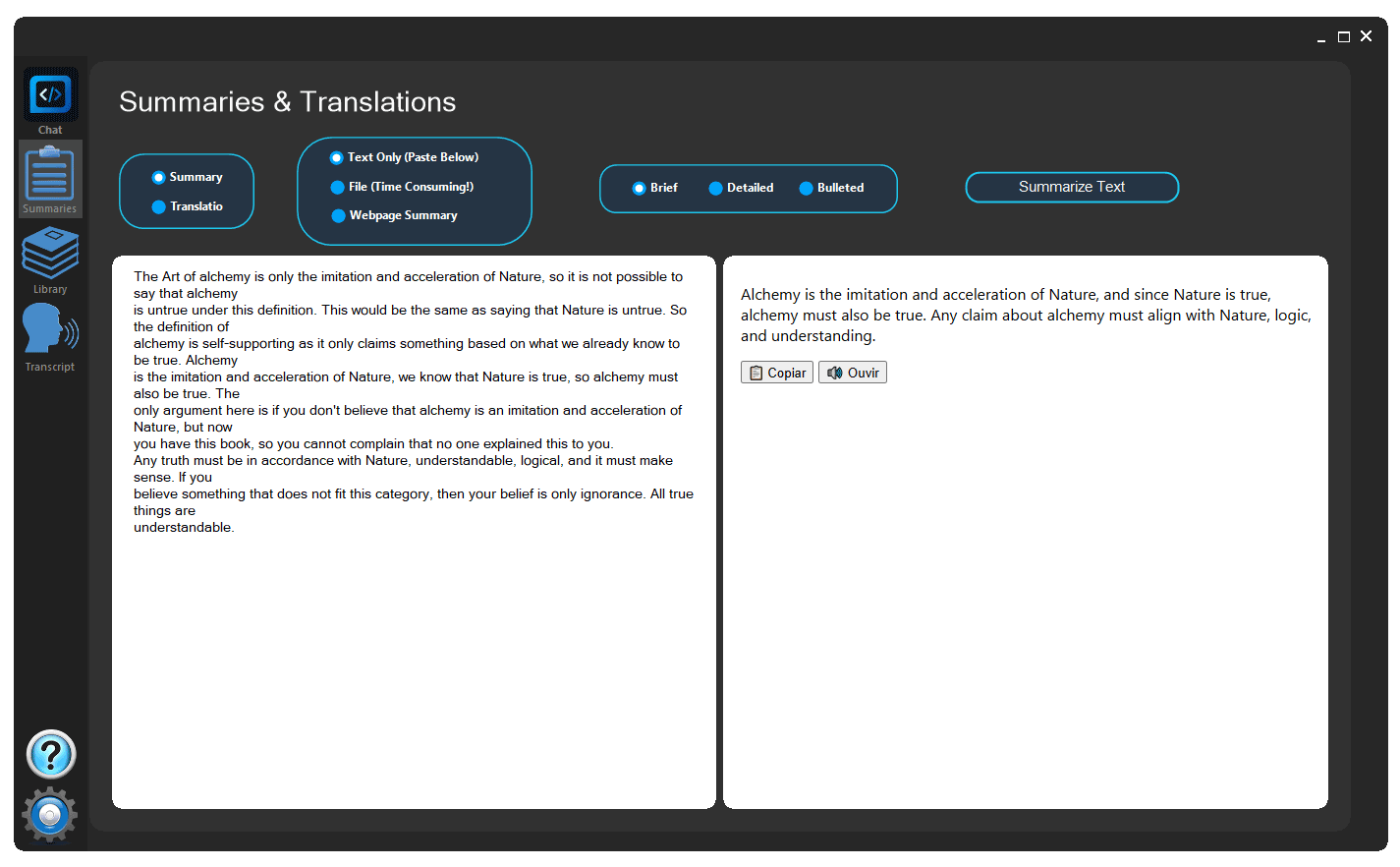
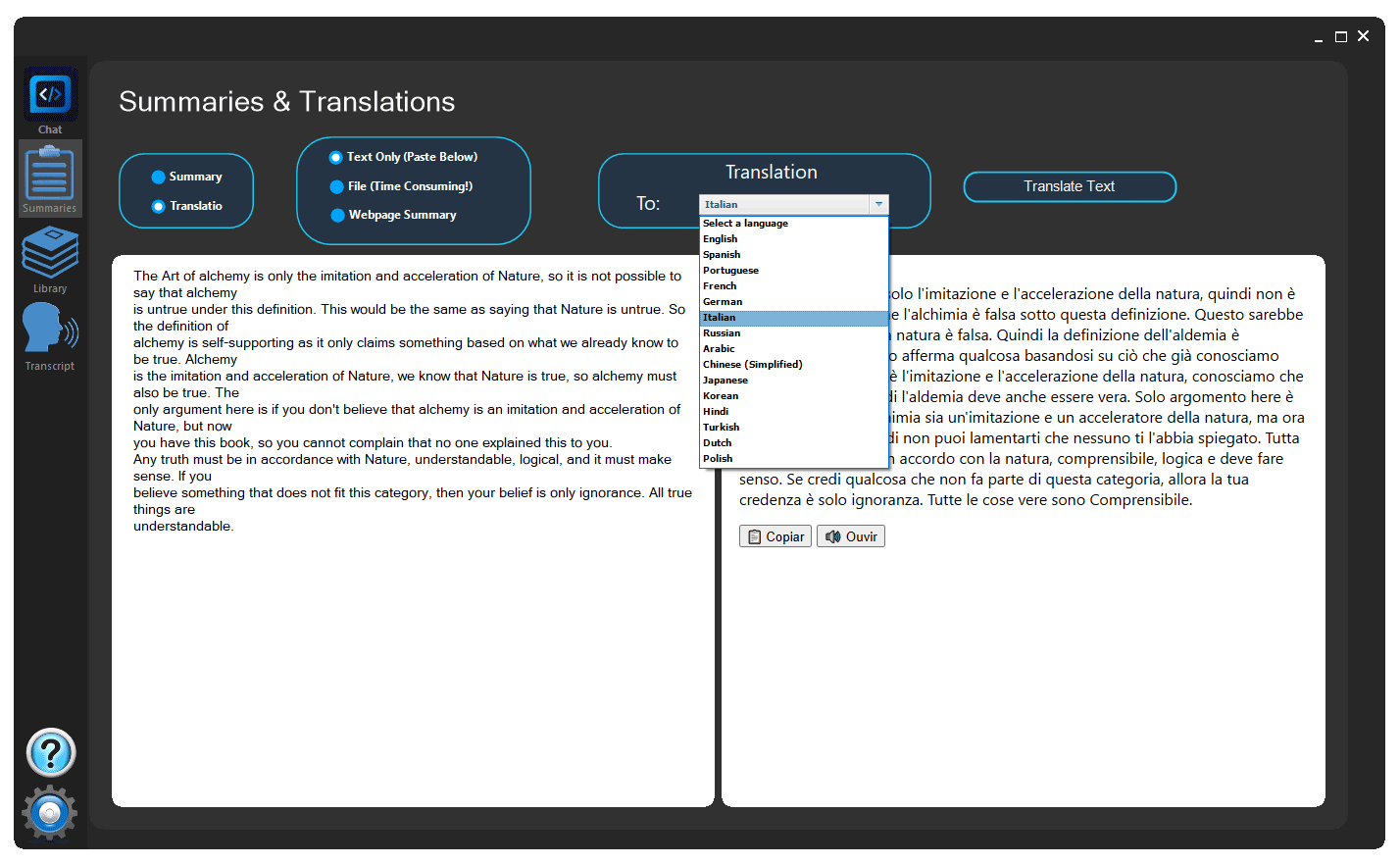
Leveraging specialized offline tools for voice and text manipulation.
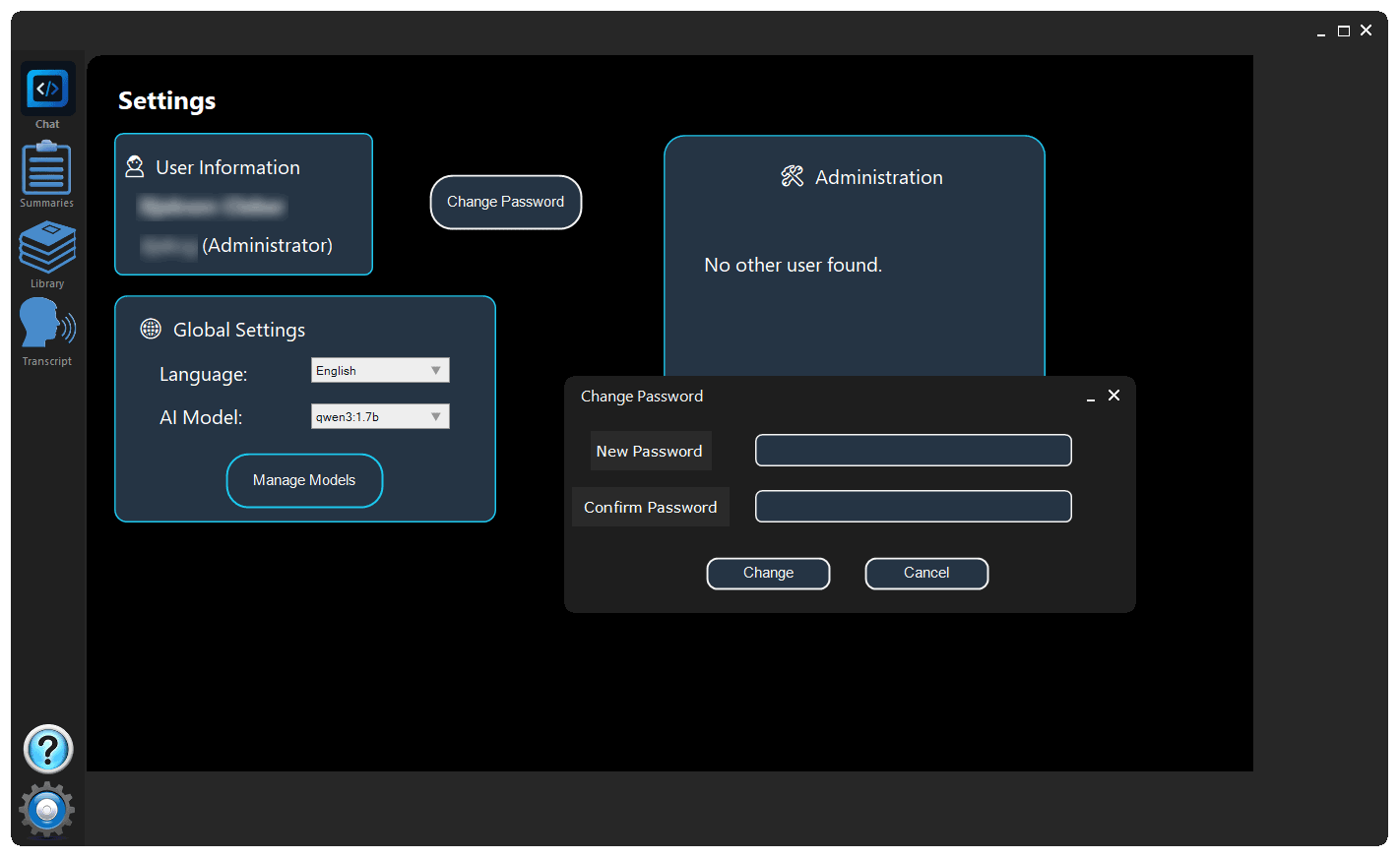
General application configuration, including language settings (American English / Brazilian Portuguese), password changes, and user maintenance (Administrator Only).
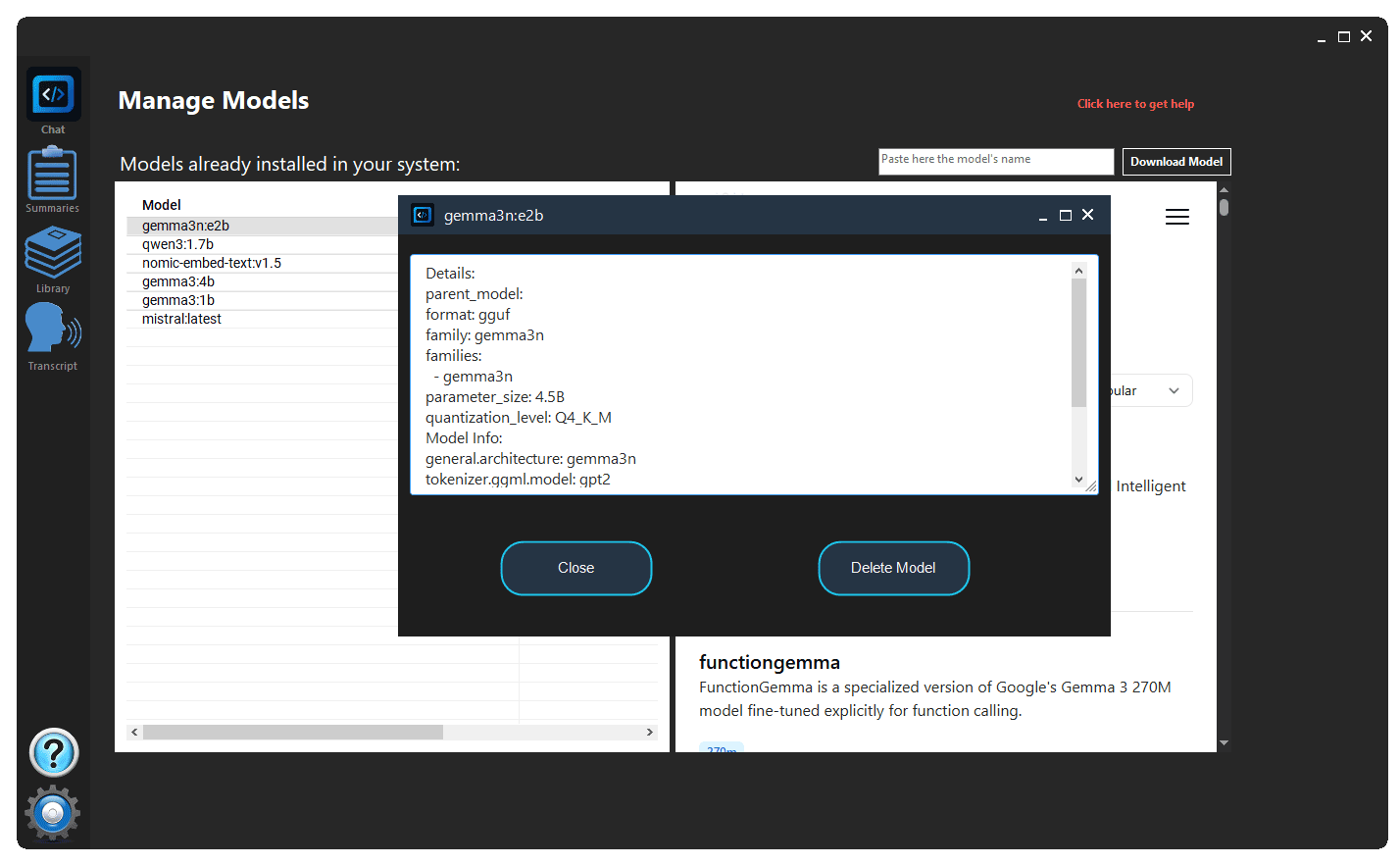
The control center for your AI engine.
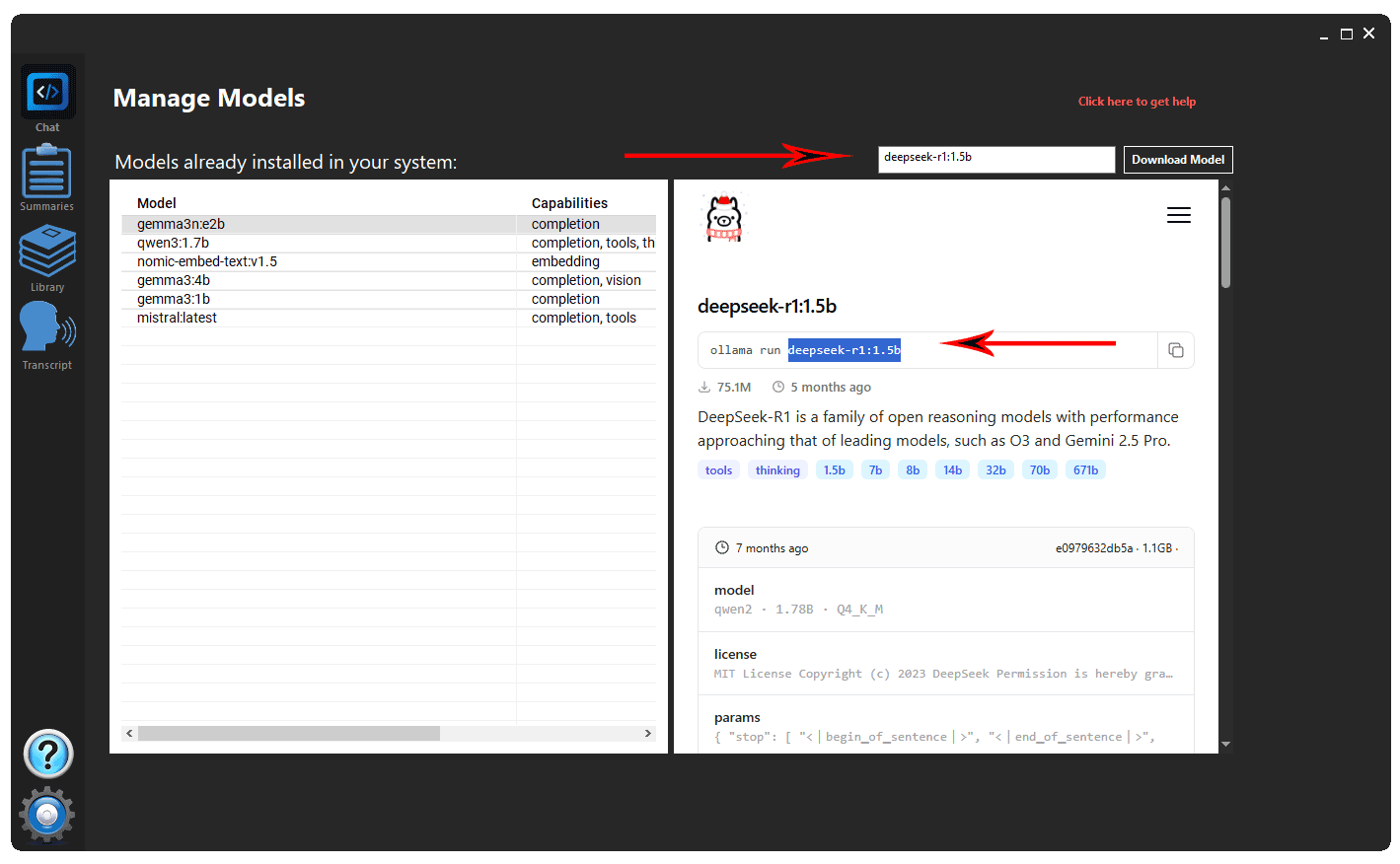
In the right pane of the tab, you can search for a new model to download. Look for models that feature "completion", "thinking", and/or "chat".
The quality of the models depends on the number of parameters, 1.5b, 7b...671b; the more parameters (and file size), the greater the "intelligence" of the model, and also the higher the consumption of your computer's resources.
The more memory (RAM) and processing power, the faster the model's responses.
Copy the name of the chosen model and paste it into the text box indicated in the image above.